 Audible

Enhancing audible accessibility begins with identifying potential barriers that may hinder users who rely on audio output.
- Identify
- Test
- Action
- Improve
Labels and Screen Readers are both really important steps to creating an accessible website.
Identifying Clear Labels for Assistive Technologies
- Labels are the names we give to all the interactive elements in our web pages and apps. Barriers arise when labels are missing or unclear.
- Assistive technology tools such as screen readers (which read aloud the text in digital products) and speech controllers (which perform commands spoken by the user) rely on the labels we use to work.
Good Labels
- A good label should convey the meaning and purpose in a unique and clear way. For example, a link to send an email displayed as an envelope icon should have the label 'email us' rather than 'envelope'. Links to 'read more' should include the context, such as "read more about our services".
- By identifying the labels and confirming they are meaningful we can ensure users of assistive technology are able to access our digital products.
Continue your learning here:
Supplemental guidelines
Mobile First!
Learn moreSupplemental guidelines
Commercial
Learn moreTools & Checklist:
Supplemental guidelines
WCAG Ratings
Learn moreSupplemental guidelines
Testing Checklist
Learn moreSupplemental guidelines
Resources
Learn more
There are a few ways we can test our sites:
- Manual Auditory Testing: Conduct thorough manual testing using screen readers and other audio-based assistive technologies to navigate through the website and assess the auditory user experience.
- Automated Auditory Testing Tools: Employ automated testing tools specifically designed to evaluate audible accessibility, which can identify issues such as missing alternative text, improper audio player functionality, or lack of captions.
-
Types of Manual Testing

- Black box testing:
- White box testing:
- Gray box testing:
It is a type of software testing technique that focuses on testing the functionality of a software system without any knowledge of its internal workings. This technique is used to test the system from a user's perspective, focusing on testing whether the system works as expected and meets the user's needs. The tester only knows the inputs and expected outputs of the system and does not know how the system works internally.
This technique is used to test the system from a developer's perspective, focusing on testing the system's internal logic, performance, and efficiency. The tester has complete knowledge of the system's internal details, including the code and its implementation.
Combines the approaches of both black box and white box testing. This technique follows from a developer's perspective, the focus is on testing some of the system's internal workings but not all. The tester has partial knowledge of the system's internal details.
-
Testing Without Tools
- Are subtitles available with video?
- Does the content of the screen rotate when you rotate your device?
- Are visible details described in videos?
- Are textual alternatives available for all non-text content?
- Is the structure of a page clear to users of assistive technologies?
- Is the order of elements clear to assistive technologies?
- Can you operate the app with assistive technologies?
- Are there places in the app where you get stuck using the keyboard?
- Do the headings and labels describe the content clear enough?
- Is the correct name, role and value given?
You can test the points below without any tools or use of assistive technology.
Captions must be available for all videos with sound, even for live video. So people who depend on captions can understand what is being said.
Wheelchair users sometimes have their device mounted horizontally. The content of the screen must rotate with the display of the device. Support vertical and horizontal display.
If there is important information that you cannot hear, you must describe the information. You do this by offering a soundtrack in which the visual information is described. In this way, people who are blind can hear all the information.
People who are blind use a screen reader to read the information on the screen. Make sure that a description is available for all non-text content. Images, for example. By describing them the screen reader can read what you see.
Information on the screen must be conveyed to assistive technologies. For example, make sure that headings are not only bold, but also marked as headings in the code. Relationships on the screen must be usable with assistive technologies. Elements in a list must be navigable one by one. Elements in a table must be navigable by rows and columns.
Make sure that the order which assistive technologies follow reflect the meaning of the content. Otherwise, users of assistive technology may misunderstand the content. Most content is presented from left to right, from top to bottom. The information should also be presented to users of assistive technologies in this way.
Make sure that all functionality in the app can be used with assistive technologies. People who are blind use the screen reader. People with a motor disability use switch control, voice control and/or the keyboard. These assistive technologies are built into the operating system.
Prevent people using an external keyboard from getting stuck in your app. For example, it often happens that pop-ups cannot be closed with a keyboard. You can test this to a large extent with a screen reader.
The use of headings is important to understand how the content is structured. Blind users can use a screen reader to request an overview of all headings on the screen. The use of labels is important with forms to understand what input is requested. Make sure the labels are linked to the input fields.
It should be clear to users of assistive technologies what actions they can take. Make sure that the name, role and value can be determined for all elements. For example, when you use an image as a button, you must set the role as a button.
Are subtitles available with video?
Captions must be available for all videos with sound, even for live video. So people who depend on captions can understand what is being
said.
Are visible details described in videos?
If there is important information that you cannot hear, you must describe the information. You do this by offering a soundtrack in which the
visual information is described. In this way, people who are blind can hear all the information.
Continue your learning here:
Supplemental guidelines
Mobile First!
Learn moreSupplemental guidelines
Testing Checklist
Learn moreTools & Checklist:
Supplemental guidelines
WCAG Ratings
Learn moreSupplemental guidelines
Commercial
Learn moreSupplemental guidelines
Resources
Learn more1. Provide Transcripts and Captions
- Transcripts: Offer text transcripts for all audio content, such as podcasts and audio recordings. This helps users who cannot hear the audio to read the content instead.
- Captions: Add captions to all video content. Captions should include not only the spoken words but also important sounds and speaker identification.
Hosting videos and audio on YouTube improves accessibility and supports compliance by enabling captions, subtitles, audio descriptions, and compatibility with screen readers and keyboard navigation. Find out more on our compliance page.
2. Use Visual Indicators
- Visual Alerts: For any audio alerts or notifications, provide a visual equivalent. For example, if a sound indicates a new message, also show a visual notification.
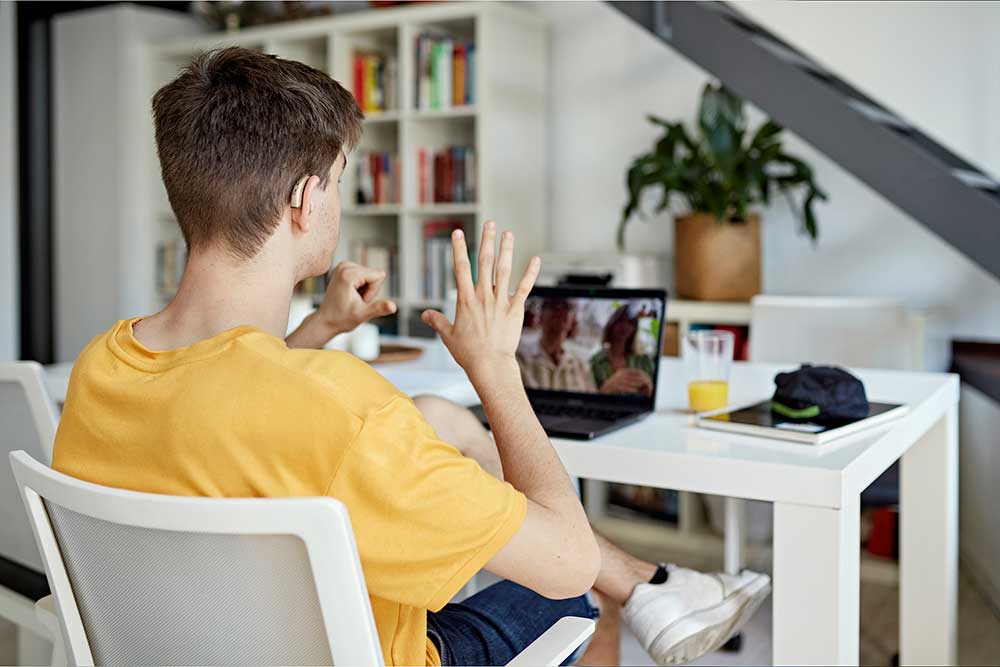
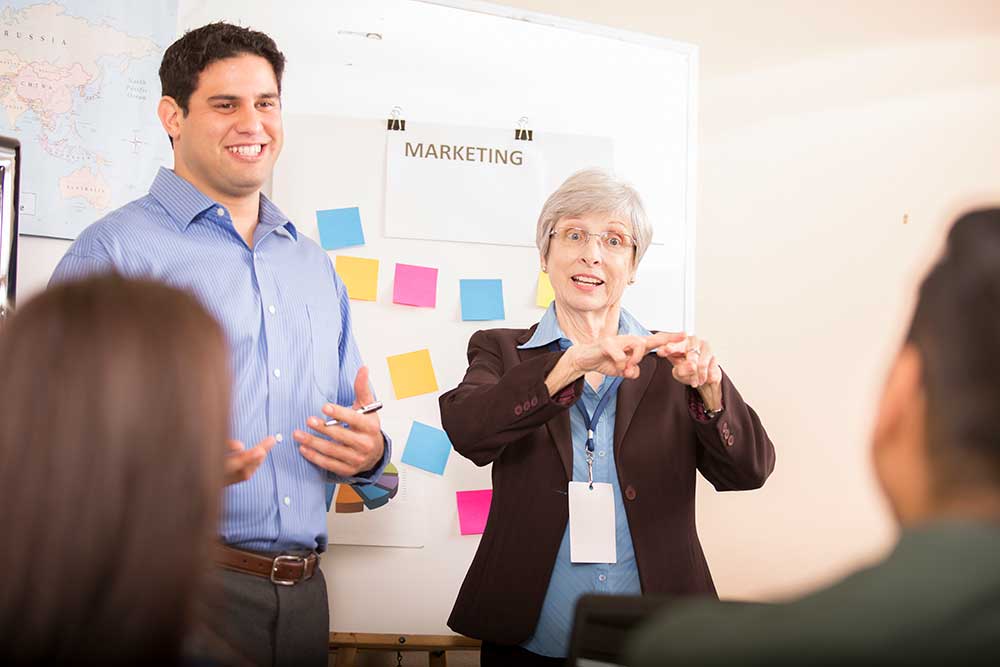
- Sign Language: Consider providing sign language interpretation for important video content.
3. Ensure High Contrast and Readability
- Contrast: Use high color contrast for text and important visual elements to make them easily distinguishable.
- Simple Language: Use clear and simple language to make content easier to understand.

4. Multiple Contact Options
- Text-Based Communication: Offer multiple ways for users to contact you, such as email, live chat, or text messaging, in addition to phone calls.
5. Integrated Descriptions
- Video Descriptions: Include descriptions for video content that explain visual elements, especially if they are crucial to understanding the content.
Continue your learning here:
Supplemental guidelines
Mobile First!
Learn moreSupplemental guidelines
Testing Checklist
Learn moreTools & Checklist:
Supplemental guidelines
WCAG Ratings
Learn moreSupplemental guidelines
Commercial
Learn moreSupplemental guidelines
Resources
Learn more
It's important to look beyond ticking the boxes for WCAG AA compliance. The overall objective of accessibility is to remove barriers and make
things easier for everyone.
There are other things that will make your site more accessible that aren't necessary for AA compliance.
Captions and Transcripts
Check to make sure your video and audio captions are clear and accurate, especially if you have used AI to generate them. Ensure you provide
captions for videos and transcripts for podcasts or other audio files.
This benefits not only people with hearing impairments but also those who prefer to read content. People without hearing impairments may wish to
use them in noisy situations or where there is a need for silence.
-
Types of Manual Testing
- Black box testing:
- White box testing:
- Gray box testing:
It is a type of software testing technique that focuses on testing the functionality of a software system without any knowledge of its internal workings. This technique is used to test the system from a user's perspective, focusing on testing whether the system works as expected and meets the user's needs. The tester only knows the inputs and expected outputs of the system and does not know how the system works internally.
This technique is used to test the system from a developer's perspective, focusing on testing the system's internal logic, performance, and efficiency. The tester has complete knowledge of the system's internal details, including the code and its implementation.
Combines the approaches of both black box and white box testing. This technique follows from a developer's perspective, the focus is on testing some of the system's internal workings but not all. The tester has partial knowledge of the system's internal details.
-
Testing Without Tools
- Are subtitles available with video?
- Does the content of the screen rotate when you rotate your device?
- Are visible details described in videos?
- Are textual alternatives available for all non-text content?
- Is the structure of a page clear to users of assistive technologies?
- Is the order of elements clear to assistive technologies?
- Can you operate the app with assistive technologies?
- Are there places in the app where you get stuck using the keyboard?
- Do the headings and labels describe the content clear enough?
- Is the correct name, role and value given?
You can test the points below without any tools or use of assistive technology.
Captions must be available for all videos with sound, even for live video. So people who depend on captions can understand what is being said.
Wheelchair users sometimes have their device mounted horizontally. The content of the screen must rotate with the display of the device. Support vertical and horizontal display.
If there is important information that you cannot hear, you must describe the information. You do this by offering a soundtrack in which the visual information is described. In this way, people who are blind can hear all the information.
People who are blind use a screen reader to read the information on the screen. Make sure that a description is available for all non-text content. Images, for example. By describing them the screen reader can read what you see.
Information on the screen must be conveyed to assistive technologies. For example, make sure that headings are not only bold, but also marked as headings in the code. Relationships on the screen must be usable with assistive technologies. Elements in a list must be navigable one by one. Elements in a table must be navigable by rows and columns.
Make sure that the order which assistive technologies follow reflect the meaning of the content. Otherwise, users of assistive technology may misunderstand the content. Most content is presented from left to right, from top to bottom. The information should also be presented to users of assistive technologies in this way.
Make sure that all functionality in the app can be used with assistive technologies. People who are blind use the screen reader. People with a motor disability use switch control, voice control and/or the keyboard. These assistive technologies are built into the operating system.
Prevent people using an external keyboard from getting stuck in your app. For example, it often happens that pop-ups cannot be closed with a keyboard. You can test this to a large extent with a screen reader.
The use of headings is important to understand how the content is structured. Blind users can use a screen reader to request an overview of all headings on the screen. The use of labels is important with forms to understand what input is requested. Make sure the labels are linked to the input fields.
It should be clear to users of assistive technologies what actions they can take. Make sure that the name, role and value can be determined for all elements. For example, when you use an image as a button, you must set the role as a button.