 Physical


Keyboard accessibility is vital for users who rely on alternative input methods, ensuring a seamless and enhanced experience for those with motor impairments or who may not use a traditional mouse.
- Identify
- Test
- Action
- Improve
Navigating without a mouse
Accessing and Navigating Interactive Content
- Most users will access interactive things by tapping a screen or using a mouse, trackpad or some other way to drive a cursor on the screen. We refer to all these as pointers.
- Some users will move through the page using the tab key. This helps them navigate from item to item in a linear way. You may have done this while filling out an online form.
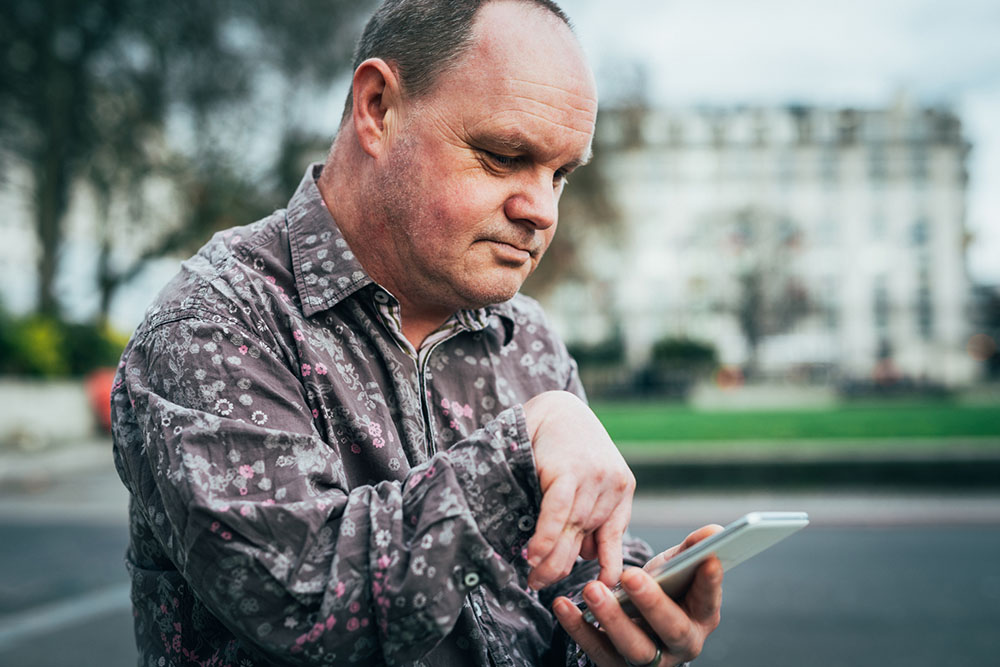
Most digital products have at least one interactive element. It could be the main navigation, a form or a button.
Focus Order System
- The tab key is connected to a system known as 'focus order'. When the tab key is pressed it moves the 'focus' to the next interactive item on the page.
- You may have seen the focus system in action. It's often rendered as a little blue or black outline around an interactive element.
- The focus system is very flexible. As well as the tab key, the focus system can be controlled and used by assistive devices such as bite switches, blow switches, big round buttons, eye gaze tools and more.
Testing Navigation without a Mouse:
- Some users with motor disabilities, as well as those who are blind, have difficulty navigating the web using a mouse. Because of this, all web content must be accessible using the keyboard only. To test this, use the Tab key to navigate through links and forms (Shift + Tab to go backward) and the Enter key to perform an action. If you can't get to what you want, or if your cursor gets trapped and can't move, the page has an accessibility problem.
- Note: If you are using Safari, you will need to enable the following preference first: Safari > Preferences > Advanced > Check "Press Tab to highlight each item on a webpage".
Continue your learning here:
Supplemental guidelines
Mobile First!
Learn moreSupplemental guidelines
Commercial
Learn moreTools & Checklist:
Supplemental guidelines
WCAG Ratings
Learn moreSupplemental guidelines
Testing Checklist
Learn moreSupplemental guidelines
Resources
Learn more
Check for the Navigate without a mouse:
When you 'Tab' to a link with the keyboard it should be highlighted, usually with a dashed outline. If you don't see this outline this is a serious issue.
- Ensure that the keyboard navigation order is logical. It should basically match the visual reading order of the page. (e.g., header, sidebar, main content, footer).
- Check for things that only work with a mouse (e.g., a navigation menu that expands when the user hovers over it with a mouse). See what happens if you try to navigate this same area with a keyboard.
- Some pages have a link at the beginning of the page that allows users to skip over top navigation to the main content on the page, navigate to this link with Tab and then press Enter to activate the link. Ensure that the screen visually 'jumps' over the navigation to the beginning of the page. Hit Tab again and make sure that focus goes to the next link on the page. If it jumps back to the top of the page, or if focus never moves from the top of the page in the first place, the skip link might be broken.
- If any boxes pop open (e.g., slideshows, date pickers, warnings) make sure you can navigate and close these boxes with a keyboard. The Esc key should close these boxes as well.
-
Types of Manual Testing

- Black box testing:
- White box testing:
- Gray box testing:
It is a type of software testing technique that focuses on testing the functionality of a software system without any knowledge of its internal workings. This technique is used to test the system from a user's perspective, focusing on testing whether the system works as expected and meets the user's needs. The tester only knows the inputs and expected outputs of the system and does not know how the system works internally.
This technique is used to test the system from a developer's perspective, focusing on testing the system's internal logic, performance, and efficiency. The tester has complete knowledge of the system's internal details, including the code and its implementation.
Combines the approaches of both black box and white box testing. This technique follows from a developer's perspective, the focus is on testing some of the system's internal workings but not all. The tester has partial knowledge of the system's internal details.
-
Testing Without Tools
- Are subtitles available with video?
- Does the content of the screen rotate when you rotate your device?
- Are visible details described in videos?
- Are textual alternatives available for all non-text content?
- Is the structure of a page clear to users of assistive technologies?
- Is the order of elements clear to assistive technologies?
- Can you operate the app with assistive technologies?
- Are there places in the app where you get stuck using the keyboard?
- Do the headings and labels describe the content clear enough?
- Is the correct name, role and value given?
You can test the points below without any tools or use of assistive technology.
Captions must be available for all videos with sound, even for live video. So people who depend on captions can understand what is being said.
Wheelchair users sometimes have their device mounted horizontally. The content of the screen must rotate with the display of the device. Support vertical and horizontal display.
If there is important information that you cannot hear, you must describe the information. You do this by offering a soundtrack in which the visual information is described. In this way, people who are blind can hear all the information.
People who are blind use a screen reader to read the information on the screen. Make sure that a description is available for all non-text content. Images, for example. By describing them the screen reader can read what you see.
Information on the screen must be conveyed to assistive technologies. For example, make sure that headings are not only bold, but also marked as headings in the code. Relationships on the screen must be usable with assistive technologies. Elements in a list must be navigable one by one. Elements in a table must be navigable by rows and columns.
Make sure that the order which assistive technologies follow reflect the meaning of the content. Otherwise, users of assistive technology may misunderstand the content. Most content is presented from left to right, from top to bottom. The information should also be presented to users of assistive technologies in this way.
Make sure that all functionality in the app can be used with assistive technologies. People who are blind use the screen reader. People with a motor disability use switch control, voice control and/or the keyboard. These assistive technologies are built into the operating system.
Prevent people using an external keyboard from getting stuck in your app. For example, it often happens that pop-ups cannot be closed with a keyboard. You can test this to a large extent with a screen reader.
The use of headings is important to understand how the content is structured. Blind users can use a screen reader to request an overview of all headings on the screen. The use of labels is important with forms to understand what input is requested. Make sure the labels are linked to the input fields.
It should be clear to users of assistive technologies what actions they can take. Make sure that the name, role and value can be determined for all elements. For example, when you use an image as a button, you must set the role as a button.
How to test the focus order
- To test the focus order on a website, press the tab key. If it's working you should be able to clearly see where the 'focus' is and you should be able to tab your way to every link, button and form on the page.
- When you press the enter key it will act like clicking the item. If clicking an item opens a menu, pressing escape should close it. If this system works, your website or app is likely to be accessible to a wide range of users.
Continue your learning here:
Supplemental guidelines
Mobile First!
Learn moreSupplemental guidelines
Commercial
Learn moreTools & Checklist:
Supplemental guidelines
WCAG Ratings
Learn moreSupplemental guidelines
Testing Checklist
Learn moreSupplemental guidelines
Resources
Learn moreMake your website 'screen reader friendly'
1. Use Semantic HTML to create a logical structure
- Headings: Use proper heading tags (<h1>, <h2>, etc.) to structure your content. This helps screen readers understand the hierarchy and navigate the page efficiently.
- Landmarks: Use HTML5 landmarks (<header>, <nav>, <main>, <footer>) to define different sections of your page.
2. Provide Text Alternatives to non-text content
- Use image alt tags: Use alt attributes to describe the content and function of images. E.g. "Woman applying make-up" rather than just "Woman".
- Use blank alt tags if necessary: Alt tags should be different to any written caption for the image, otherwise a screen reader will read the same thing twice. If the written caption also describes the image then leave the alt tag empty rather than removing it completely.
- Multimedia: Provide transcripts for audio and captions for video content. If using AI to auto generate these, check through to make sure they are accurate.
3. Ensure Keyboard Accessibility
- Make sure all interactive elements (links, buttons, forms) can be accessed and operated using a keyboard. This is crucial for users who cannot use a mouse.
- Avoid Keyboard Traps: Ensure all interactive elements are keyboard accessible.
- Use Skip Navigation Links: Provide a way for screen reader users to skip repetitive content.


4. Use ARIA (Accessible Rich Internet Applications)
- Roles and Properties: Use ARIA roles, states, and properties to enhance the accessibility of dynamic content. For example, use role="alert" for important notifications.
- Labels: Use aria-label or aria-labelledby to provide accessible names for elements.
5. Write Descriptive Links
- Avoid using vague link text like "click here." Instead, use descriptive text that conveys the purpose of the link, such as "Read more about accessibility"
6. Test with Screen Readers
- Regularly test your website with different screen readers (e.g., JAWS, NVDA, VoiceOver) to ensure compatibility and usability.
Continue your learning here:
Supplemental guidelines
Mobile First!
Learn moreSupplemental guidelines
Commercial
Learn moreTools & Checklist:
Supplemental guidelines
WCAG Ratings
Learn moreSupplemental guidelines
Testing Checklist
Learn moreSupplemental guidelines
Resources
Learn more
It's important to look beyond ticking the boxes for WCAG AA compliance. The overall objective of accessibility is to remove barriers and make
things easier for everyone.
There are other things that will make your site more accessible that aren't necessary for AA compliance.
Use descriptive CTAs
Where possible, label CTAs to include context such as with text that describes what it does. E.g. in a section related to make-up products, instead of a CTA saying "Shop Now", consider something like "Shop all make-up products". Then there can be no confusion where this CTA takes you and is particularly helpful to anyone using a screen reader.